A shopper asks an agent whether a sofa comes in dark green velvet. Your store sells it, but the green variant shows the grey photo, the image file is called IMG_4821.jpg, its alt text is empty and the main photo carries a "-30% this week" sticker. A person could still work it out. An agent has very little to go on.
In this article, we look at how agents use product images, what Google's Merchant Center rules ask for and how to make images useful to both a model that looks and a model that reads.
Two ways an agent uses an image
- It looks. Multimodal models can describe what's in a photo: the color, the shape, whether a lid is included. A clean photo of the exact item makes that description accurate.
- It reads around it. Every agent reads the image's file name, alt text, caption and the text near it. Google's image guidance says it extracts information about an image from the page content, captions and titles, and recommends descriptive file names and alt text.
An image that is clean but unlabeled serves only the first. An image that is labeled but shows the wrong variant misleads both.
What Google's rules say
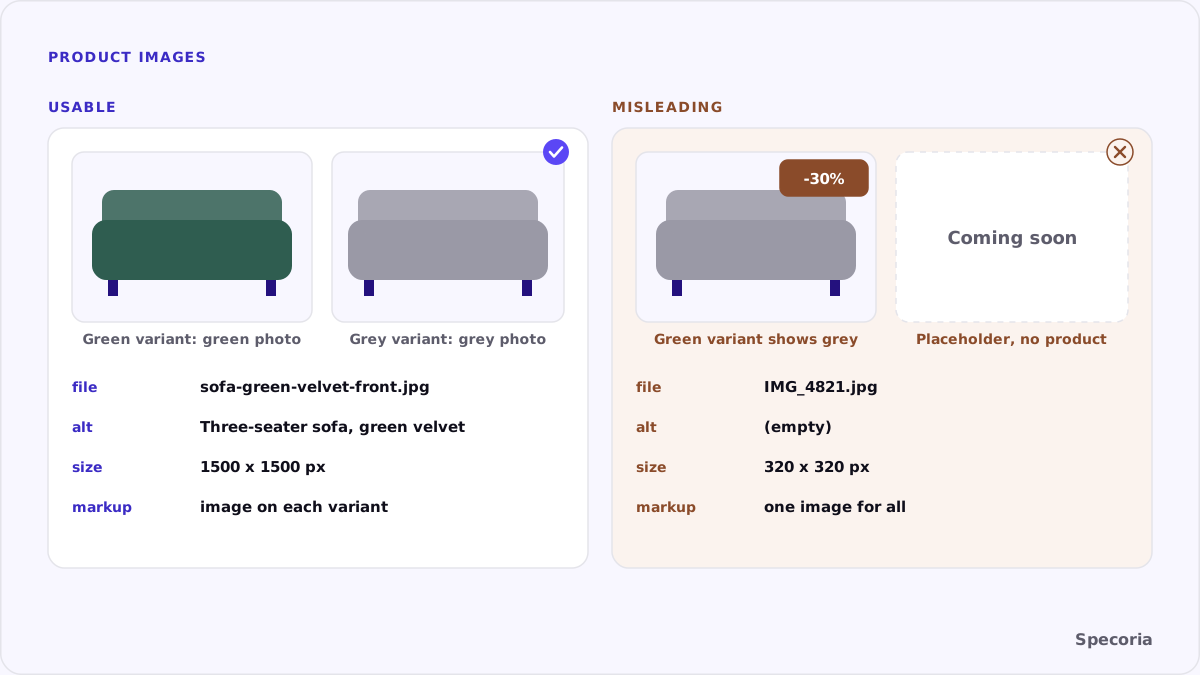
Google's Merchant Center help for image_link sets out what the main image may and may not contain:
- No promotional elements or overlays. No calls to action like "Buy now", no prices or "Free shipping", no warranty claims, no words like "Best", no added labels such as "New", no barcodes or watermarks, and no logos added in post-production.
- No placeholders. The main image must clearly show the exact item being sold, not "Coming soon", "No image available" or a store logo.
- One image per variant. For products with options, submit a distinct image for every variant that reflects its exact version, color and finish.
- Size. Google has announced a minimum of 500 × 500 pixels for all products from January 31, 2027, and recommends around 1500 × 1500 pixels or more.
- Stable URLs without timestamps or session IDs, and more views through
additional_image_link.
Words that describe the image
Alt text. Describe what the image shows, specifically: "Three-seater sofa in dark green velvet, front view". Google's guidance warns against stuffing alt text with keywords.
File names. three-seater-sofa-green-velvet-front.jpg says more than IMG_4821.jpg.
Captions and nearby text. Put the image near the text that describes the product, and caption detail shots ("Removable cover, machine washable").
Structured data. List the variant's own images in its image property, so the markup and the page agree.
Let crawlers reach the images
A good image that crawlers can't fetch helps no one. Google's image_link help notes that robots.txt must allow Google's image crawler to fetch your images, and that a robots.txt change can take 24 to 48 hours to take effect. Check for two less obvious blocks as well: CDN hotlink protection that refuses requests without your own site as the referrer, and image URLs that expire or change with every feed run. Stable, fetchable image URLs are part of the image's quality.
Common mistakes
- The same photo for every color, often the first one uploaded.
- Promotional stickers baked into the main image.
- Lifestyle shots as the main image, where the product is a small part of the scene.
- Empty or repeated alt text, such as the product name on all eight images.
- Images loaded only on interaction, so the page HTML has no image for an agent to find.
A checklist
- For five products with variants, open each variant and check that its photo matches its color or finish.
- Remove text, stickers and added logos from main images; keep promotions in the page text.
- Write alt text for every image that says what it shows, including the view.
- Rename image files descriptively when you upload new ones.
- Check that images appear in the initial HTML and in the variant's structured data.
- Note which images are under 500 × 500 pixels, ahead of Google's 2027 minimum.
The bottom line
An agent can only describe what it can see or read. A clean photo of the exact item, a dedicated image for each variant and words that say what each image shows give it both. Stickers, placeholders and mislabeled variants give it the wrong answer, which it will repeat to your customer.
Specoria checks whether your product pages carry images and a description in their structured data, alongside the rest of your product data. Start with a free readiness test.
Sources
- Google Merchant Center Help, [Image link [image_link]](https://support.google.com/merchants/answer/6324350), accessed October 22, 2026.
- Google Search Central, Image SEO best practices, last updated March 2, 2026.