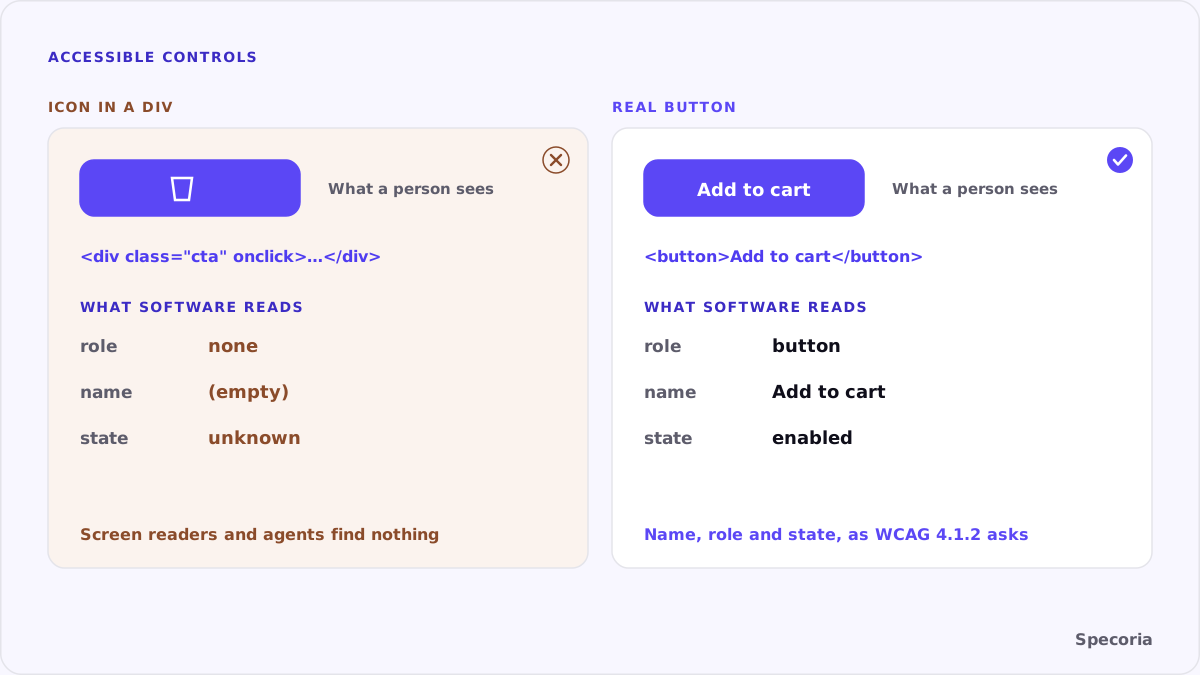
To a person, an "add to cart" button is obvious: it is the large purple shape with a bag icon under the price. To software, it may be a div with a click handler, no text and no role. A screen reader announces it as nothing. A browser agent looking for "add to cart" may not find it at all.
In this article, we look at why accessibility and agent readiness overlap, the two WCAG rules that matter most for store controls, and the mistakes that make buttons invisible to software.
Why accessibility matters to agents
A browser agent works through a page the way assistive technology does: it needs to know what each control is (a button, a link, a field), what it is called ("Add to cart", "Size M") and what state it is in (selected, disabled). The information that lets a screen reader say "Add to cart, button" is the same information that lets software identify the button.
In our own field study, one of the places agents got stuck was a checkout button they couldn't see, placed inside a closed shadow DOM; the agent only reached checkout by guessing the URL. Controls that can't be identified add exactly that kind of guesswork.
Two WCAG rules that matter most
The Web Content Accessibility Guidelines (WCAG 2.2) contain two Level A success criteria that describe what agents need:
- 4.1.2 Name, Role, Value. For all user interface components, including those generated by scripts, the name and role can be programmatically determined, and states and values set by the user can be programmatically set. In plain terms: every control says what it is and what it's called, in code.
- 2.5.3 Label in Name. For components with visible text labels, the accessible name contains the visible text. W3C recommends putting the label's text at the start of the name. If the button says "Add to cart", its name should too, not "btn-primary" or "Purchase CTA".
Level A is the minimum level of conformance, and these two are among the most basic.
Common store mistakes
- Clickable
divs andspans instead of<button>elements, with no role. - Icon-only buttons for cart, wishlist, close and search, with no text and no
aria-label. - Variant swatches as colored circles with no name: the agent can't tell "Navy" from "Black".
- Size buttons that don't expose state: nothing says which size is selected or which is sold out.
- Names that don't match labels: a button labeled "Buy now" with an accessible name of "submit".
- Controls inside closed shadow DOM or iframes that the page doesn't expose.
- Custom dropdowns built from
divs instead of a<select>or a properly labeled listbox.
What to do
- Use native elements:
<button>for actions,<a>for navigation,<select>and<input>for choices. They come with a role and keyboard support built in. - Give every control a visible text label, or an
aria-labelif it must be an icon, and make the accessible name match the visible text. - Expose state:
aria-pressedoraria-checkedfor selected swatches and sizes,disabledfor sold-out options, with the reason in text. - Name variants in words: "Color: Navy", "Size: M", not just a color or a box.
- Keep key actions out of closed shadow DOM and cross-origin iframes, or make sure they are exposed with names and roles.
It helps people first
None of this is only for software. W3C's explanation of Label in Name gives the human reason: people who control a computer by voice use the visible labels in their commands. If the button says "Add to cart" but its name is "submit", saying "click Add to cart" does nothing. Screen reader users depend on names, roles and states for the same reason.
That makes accessibility work easy to justify twice: it removes barriers for customers using assistive technology, and it makes the same controls usable by the agents some customers send instead.
A five-minute check
- Open a product page and press Tab repeatedly. Can you reach the size options, the add-to-cart button and the cart link with the keyboard alone?
- Open your browser's accessibility inspector on the add-to-cart button. Is the role "button" and the name "Add to cart"?
- Check a color swatch and a sold-out size. Do they have names and states?
- Turn on your operating system's screen reader for one minute and listen to the product page. Anything it can't name, an agent may not find.
The bottom line
Accessibility isn't a separate project from agent readiness. The names, roles and states that make a store usable with a screen reader are what make it operable by software. Use real buttons, label them with the words people see, expose which option is selected, and you serve both at once.
Specoria checks whether your add-to-cart button is in the initial HTML and whether the cart button is accessible, as part of the action checks in its test. Start with a free readiness test.
Sources
- W3C, Understanding Success Criterion 4.1.2: Name, Role, Value, WCAG 2.2, accessed October 22, 2026.
- W3C, Understanding Success Criterion 2.5.3: Label in Name, WCAG 2.2, accessed October 22, 2026.
- Specoria Insights, We sent AI agents shopping in a real browser 40 times