Your store runs "10% off everything with code AUTUMN10, until Sunday". The code appears in a pop-up on the homepage and in an email. A shopper asks an agent for the best price on a lamp you sell. The agent reads your product page, finds the full price, compares it with a competitor whose discount is part of its price, and recommends the competitor. Your offer was better. The agent never saw it.
In this article, we look at why promotions are invisible to agents, what Google's promotions data asks for and how to publish offers an agent can read, compare and apply.
Where promotions hide
- Pop-ups and banners that appear on some pages and not others. See pop-ups, cookie walls and interstitials.
- Images. "-20%" baked into a banner.
- Emails and social posts, which the agent never sees.
- Conditions in small print or nowhere: minimum basket, excluded brands, first order only.
- No end date, or a countdown that restarts on every visit.
An agent can only use an offer it can read: the amount, the condition, the dates and, if there is one, the code.
What Google's promotions data asks for
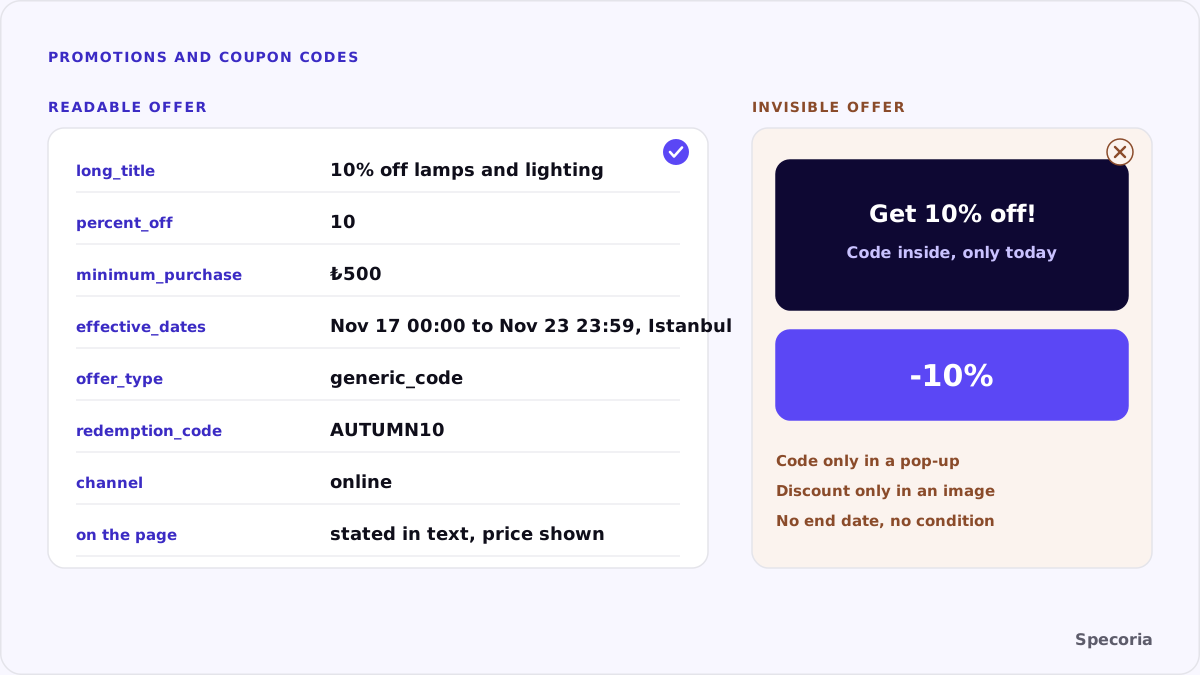
Google's Merchant Center promotions specification is a useful checklist even outside Google, because it lists the parts of an offer that matter:
promotion_id: a unique ID, up to 50 characters, with no spaces or symbols such as % and !.long_title: a title of up to 60 characters that describes the promotion completely and accurately.promotion_effective_dates: a start and an end, with the time of day and the time zone.offer_type: whether a code is needed. If it is a generic code that is the same for all customers,generic_redemption_codeholds it.redemption_channel: online, in store or both.- Amount and conditions:
percent_offormoney_off_amount, andminimum_purchase_amountfor offers like "free shipping over 50".
Google also says shipping promotions must include a valid redemption code, and free shipping promotions must include a coupon code customers can apply by hand. Check whether Merchant Center promotions are available in your country before relying on them.
On your own pages
Whatever your feeds say, the product page is where an agent checks:
- State the offer in text on the product page: "10% off with code AUTUMN10, until Sunday 23:59 (Istanbul time), on orders over ₺500."
- Show the result where possible: the discounted price next to the regular one, with the regular price being one you actually charged. We covered how Google marks a sale price in Google's Universal Cart.
- Give the coupon field a label such as "Discount code" at checkout, so a browser agent can find it. See buttons a browser agent can find.
- Use real end dates. A countdown that restarts is a false claim, and an agent that checks twice will notice.
- Remove expired offers from pages and feeds on time.
Member prices and loyalty offers
Some of the best prices in a store are for members only. Those need the same treatment: say on the page who qualifies and what they pay. Google's merchant listing markup has a way to state a member price, using a price specification with validForMemberTier, separate from the active price everyone pays. An agent that knows the shopper is a member can then compare the right price; one that doesn't at least sees that a better price exists and on what condition.
Common mistakes
- The code only in a pop-up or email.
- "Up to 50% off" with no way to tell which products or how much.
- Conditions that appear only in the cart, such as an excluded brand.
- A discount applied automatically in the cart but not shown on the product page, so agents quote the higher price.
- Different offers on the page, in the feed and at checkout.
A checklist
- List your active promotions with amount, condition, dates and code.
- For each, check that the product page states it in text and shows the resulting price.
- Confirm the checkout has a labeled discount code field that accepts the code.
- If you use Merchant Center promotions, check that dates, codes and amounts match the page.
- Set a reminder to remove each promotion when it ends.
The bottom line
A promotion an agent can't read doesn't exist in its answer. Put the amount, the condition, the dates and the code on the product page in text, keep them identical in your feeds and make the code field easy to find. Then your best price is the one the agent compares, and the one your customer actually gets.
Specoria checks whether your prices are readable and consistent between page, structured data and feed, and whether checkout steps are reachable. Start with a free readiness test.
Sources
- Google Merchant Center Help, Promotions data specification, accessed October 22, 2026.
- Specoria Insights, Pop-ups, cookie walls and interstitials
- Specoria Insights, Buttons a browser agent can find